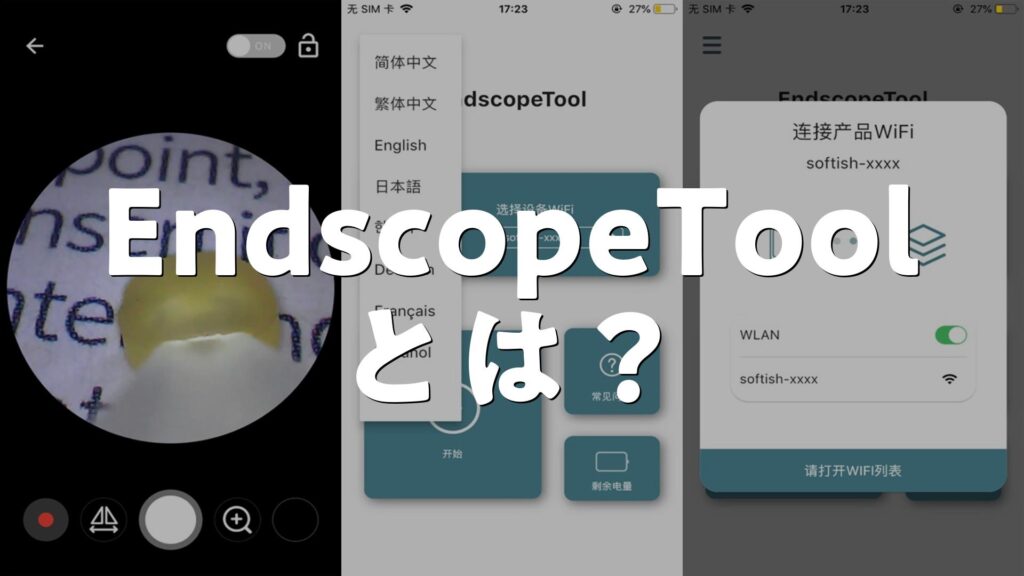
EndscopeTool is a mobile app that connects to compatible wireless camera devices and shows their live camera feed on a phone. It is also used with visual ear-cleaning tools, so users can see the camera view while using the device. You need compatible hardware, a working connection, and the correct app version to use it.
In the United States, people may encounter EndscopeTool while shopping for a camera ear cleaner or a small inspection camera online. The app is listed on Google Play and Apple’s App Store. Its main purpose is to display images sent by compatible wireless camera equipment. It is not a stand-alone camera and cannot work as intended without supported hardware.
The setup may seem odd at first because some devices use their own Wi-Fi network instead of Bluetooth. Your phone may show that the network has no internet access, even when the camera connection is working. The key is to follow the instructions supplied with the exact device, check the app’s permissions, and avoid using a visual ear cleaner deep inside the ear canal.
This guide explains what EndscopeTool does, how to install and connect it, what to check when the picture fails, and how to think about privacy. App features, menus, permissions, and compatibility can change. Check the current store listing and the instructions for your device before relying on any specific feature.
EndscopeTool is a utility app designed to receive camera images from compatible equipment over a wireless connection. The Google Play listing describes it as software for Wi-Fi transmission equipment. It says users can connect a phone to the device’s Wi-Fi connection and view the transmitted camera image.
The Apple App Store also lists EndscopeTool as a utility for iPhone and iPad. Its description focuses on viewing images sent by a connected camera device. The app is associated with visual ear-cleaning equipment, though the exact functions available depend on the hardware and software version.
In simple terms, the app acts as a screen for a small camera. The camera captures an image, sends it to the phone, and the app displays it. Some compatible devices may also support photos or video, but you should confirm those functions for your own model rather than assume every device has them.
Source: pp.myapp.com
Camera display
The app can show images sent from supported wireless camera equipment.
Companion software
The app depends on a compatible camera device. Installing it does not turn a regular phone into an endoscope.
Device-dependent features
Live viewing, image capture, recording, and file storage may vary by model and app version.
Is EndscopeTool a physical tool?
No. EndscopeTool is the name of the app, not the camera hardware itself. The physical product may be a visual ear cleaner or another supported camera device. The camera, light, handle, charging system, and any cleaning tip belong to the hardware.
This difference matters when you troubleshoot a problem. If the app opens but shows a blank screen, the cause could be the camera, its power supply, the wireless link, or an app setting. Reinstalling the app will not fix a damaged camera or a drained battery.
App problem
The app closes, freezes, or fails to display a feed even when the hardware is ready.
Hardware problem
The camera does not power on, its light stays off, or the device fails to charge.
Connection problem
The phone is connected to the wrong network or the camera’s wireless signal is unavailable.
Where Can You Download EndscopeTool?
The two main places to check are Google Play for Android devices and the Apple App Store for iPhone or iPad. Search for the exact name, EndscopeTool, and confirm that the listing matches the app described in your hardware instructions. Similar names can refer to different apps.
The Google Play listing identifies the app as EndscopeTool and describes its wireless camera function. The Apple listing uses the same name and presents it as a utility. Store details, app versions, ratings, and compatibility can change, so check the live listing before installing.
Avoid assuming that a download page is safe simply because it uses the correct app name or displays the same icon. Third-party APK sites may host older packages or files that are not the same as the current official release. If the app is missing from your store, ask the hardware seller for the correct download instructions before trying an alternative.
Source: is1-ssl.mzstatic.com
Android
Open Google Play, search for EndscopeTool, check the app details, and install the matching listing.
iPhone or iPad
Search the Apple App Store for EndscopeTool and confirm the listed compatibility and system requirements.
Before installing
Review the developer name, update history, permissions, privacy information, and instructions provided with the camera.
Is EndscopeTool free?
The Apple App Store listing describes EndscopeTool as free to download. The current Google Play listing should be checked for the latest installation details and any changes in pricing or available features. A free download does not mean every compatible camera or accessory is free.
Also check for optional purchases, ads, or other terms shown by the store. Do not enter payment details merely because an unfamiliar download page claims they are needed to activate the camera.
App cost
Confirm the current price on the official store before installation.
Hardware cost
The camera or visual ear-cleaning device is a separate physical product.
Does EndscopeTool work on every phone?
No. The phone must meet the app’s operating system requirements, and the camera must support the connection method used by the app. The Apple listing includes iPhone and iPad compatibility information, while Android users should review the current Google Play requirements.
A phone with Wi-Fi cannot automatically connect to every wireless camera. Different products may use different network names, connection settings, or companion apps. Check the exact model before buying a replacement device or assuming an app update will solve a mismatch.
Check the operating system
Make sure the phone runs a supported version of Android or iOS.
Check the camera model
Look for EndscopeTool compatibility in the manual or the seller’s support details.
How to Set Up and Use EndscopeTool
The usual setup involves charging the camera, connecting the phone to the camera’s wireless network, and opening the app. Exact steps may differ by model. Follow the included manual whenever its instructions differ from this general guide.
Before starting, make sure the camera is compatible, the battery has enough power, and the app came from a source you trust. Keep the camera away from water unless the manufacturer has stated that the exact model is waterproof. Do not test a new camera inside your ear just to see whether the picture works.
Source: m.media-amazon.com
What you need
A compatible camera, a charged phone, the EndscopeTool app, and the device’s setup instructions.
A suitable location
Use a well-lit, dry place where you can handle the device without rushing.
Step 1: Charge and power on the camera
Charge the camera or handle according to its manual. Some devices have a power button, while others use a switch or a button that also controls the light. Check the manual rather than guessing which control to press.
Look for a normal power indicator or the startup signal described by the manufacturer. If the device does not power on, check the cable, charging port, and battery instructions first. Do not open the housing or try to repair a battery unless the manufacturer provides a safe procedure.
Success sign
The device powers on and shows the expected indicator or light.
If it fails
Charge it as directed and inspect the cable for visible damage before trying again.
Step 2: Connect your phone to the camera Wi-Fi
Open the phone’s Wi-Fi settings and look for the network name shown in the device manual. Some camera kits use a network with a short name followed by letters or numbers. Select the matching network and enter a password if the instructions require one.
Your phone may warn that the network has no internet connection. This can be normal when the network is meant to carry camera images rather than provide internet access. If the instructions tell you to stay connected, avoid switching back to your home Wi-Fi while testing the live feed.
Never select an unknown network simply because its name looks similar. If several nearby devices use the same type of network name, power off other cameras and repeat the connection process with your own device.
Success sign
The phone shows that it is connected to the camera network.
If it fails
Check the network name, password, camera power, and distance between the phone and camera.
Step 3: Open EndscopeTool
Once the phone is connected, open EndscopeTool and follow the on-screen prompts. Some compatible devices may display a start button or a live-view screen. Other versions may use a different layout.
Allow only the permissions needed for the functions you intend to use. A permission prompt may appear when you first open a feature rather than at installation. If a permission is denied, check whether the affected function genuinely needs it before changing the setting.
Success sign
The app opens without an error and displays the camera image when the connection is ready.
If it fails
Close the app, verify the Wi-Fi connection, and reopen the app before changing advanced settings.
Step 4: Check the live image
Keep the camera outside the ear or away from any sensitive area while you test the view. Check whether the image responds when you move the camera gently in open space. If the picture is dark, confirm that the device’s light is enabled and that the lens is clean according to the manual.
If the picture appears rotated or reversed, look for an orientation or image-flip control if the app provides one. Do not assume the camera is broken because the image direction feels unfamiliar. A short test in a safe setting can help you learn how the view changes with movement.
Success sign
The image updates as the camera moves and the view remains stable enough to inspect.
If it fails
Check the lens, battery, Wi-Fi connection, and device-specific instructions.
Step 5: Save or review images if supported
Some versions or compatible devices may offer photo or video capture. If you use these features, check where the app saves files and whether it needs permission to access photos or media. A saved image may remain inside the app rather than appear at once in the phone’s main photo library.
Take care when recording images of your body or another person. Store them securely, avoid sharing them through public links, and delete files you no longer need. If the app offers no capture feature on your device, do not assume that the function is hidden or that another app with a similar name will work.
Success sign
A supported photo or video appears in the app’s gallery or the expected phone folder.
If it fails
Check storage space, app permissions, and the manual’s file-saving instructions.
How to Fix Common EndscopeTool Problems
When EndscopeTool does not work, check power and connectivity before reinstalling the app. These checks are simple, reversible, and often help identify which part of the setup is failing. Change one thing at a time so you can tell which step makes a difference.
The same symptom can have several causes. A blank screen, for example, may come from a weak battery, a lost wireless connection, unsupported hardware, or an app error. Use the device manual and the current app version as your guide.
Source: 1.bp.blogspot.com
Start with power
Make sure the camera is charged and switched on.
Check the network
Reconnect to the camera’s own Wi-Fi network when the device uses wireless transmission.
Check software
Update the app through the official store if an update is available.
EndscopeTool opens but shows a black screen
A black screen usually means the live image is not reaching the app or cannot be displayed. First, confirm that the camera is on and the phone remains connected to the correct network. Then close and reopen the app.
Check whether the camera lens is covered or dirty. If the device uses a removable tip or lens cover, handle it only as the manual permits. If the feed remains blank, test again after a full charge and check whether the manufacturer lists your camera model as compatible.
Likely causes
Low battery, wrong Wi-Fi network, incompatible hardware, a blocked lens, or an app fault.
Next action
Repeat the basic connection steps, then contact the seller if the camera still fails.
The camera Wi-Fi connects but the app does not work
A Wi-Fi connection alone does not prove that the app and camera can exchange images. The phone may be connected to a network from another device, or the camera may not have finished starting. Verify the exact network name and wait for the device’s normal startup process.
Some phones switch away from a network that has no internet access. If your phone does this, follow its Wi-Fi settings for keeping the camera network connected. Menu names differ by operating system, so avoid relying on steps written for a different phone model.
Check the network name
Make sure it matches the label or manual for your camera.
Keep the correct connection
Follow the device instructions if the phone warns that the network has no internet.
Try a fresh connection
Disconnect, restart the camera if the manual permits, and reconnect.
The app keeps closing or freezing
An app that closes repeatedly may be out of date, incompatible with the phone’s operating system, or affected by a temporary software fault. Close the app, restart the phone, and check the official store for updates. Also confirm that the phone has enough free storage.
If the problem began after an update, check the store’s release notes or contact the app developer. Reinstalling should be a later step because it may remove locally stored app data. Before uninstalling, save any files you need and confirm that you know how to reconnect the hardware.
Try first
Restart the app and phone, then check for an official update.
Try next
Review available storage and confirm that your phone meets the current app requirements.
Avoid
Do not install an unknown modified app to bypass a crash or connection issue.
The picture is blurry or too dark
A blurry image may result from a dirty lens, condensation, a close viewing distance, movement, or the limits of the camera itself. Clean the lens only as directed by the manufacturer. If the camera has an adjustable light, test it in a safe setting before using the device for any inspection.
A brighter image does not always mean a clearer one. Strong light can cause glare on a shiny surface, while a narrow camera view can make it hard to judge distance. If the image remains poor in open space, the lens or sensor may need service or replacement.
Clean carefully
Use only the cleaning method approved for the lens and device.
Check the light
Adjust the built-in light if supported and look for glare or shadows.
Assess the limits
Do not rely on a low-quality camera image to make a medical diagnosis.
EndscopeTool Privacy and App Permissions
Review the privacy details before using EndscopeTool, especially if you plan to save images or videos. The Apple App Store listing provides a developer privacy disclosure, but Apple notes that the information is supplied by the developer and is not independently verified by Apple. A store disclosure is useful, but it is not a full technical audit of the app.
The Google Play listing also provides a data safety section. App developers can update their disclosures, and the information shown may differ across platforms. Check the current listing for your device instead of treating an old screenshot or third-party summary as proof of the app’s present behavior.
Permissions deserve a closer look because camera companion apps may need access to local files or wireless functions to work. The exact requirements depend on the operating system and the features you use. A request for an unexpected permission should prompt you to pause and read the explanation before allowing access.
Source: img.freepik.com
Review permissions
Check the phone’s privacy settings to see which permissions the app can use.
Limit access
Allow only the permissions needed for the functions you choose to use.
Read the privacy policy
Look for details on collected data, storage, sharing, retention, and deletion requests.
Protect saved images
Keep personal images private and remove files you no longer need.
Does EndscopeTool collect personal data?
There is not enough information in a store label alone to establish every type of data an app may process in every situation. The Apple listing displays a developer-provided privacy disclosure, while Google Play presents a separate data safety section. Neither should be read as a guarantee that every device configuration or future version behaves in exactly the same way.
Check the full privacy policy linked from the current listing. Pay attention to account details, device identifiers, diagnostic information, photos, videos, and data shared with service providers. A permission indicates that an app can access a resource under certain conditions; it does not by itself prove that the app sends that information to another party.
Before use
Read the current policy and compare it with the permissions shown on your phone.
If details are unclear
Contact the developer and ask what data is collected, why it is needed, and how it is deleted.
Is it safe to use a public Wi-Fi network with the camera?
Follow the camera’s own connection instructions rather than joining an unrelated public network. A device that uses its own Wi-Fi network may not need your home internet connection to show the live camera feed. Avoid exposing personal files or entering account details into unknown pages during setup.
If the device requires a network password, use the one provided by the manufacturer or change it according to the manual if that option exists. Do not assume the camera link is encrypted or secure unless the manufacturer documents its security features. Keep the phone’s operating system and app updated when supported.
Use the intended network
Connect to the camera’s verified network rather than a random hotspot.
Avoid unknown downloads
Use the official app store whenever possible.
Using EndscopeTool for Visual Ear Cleaning
Some EndscopeTool-compatible devices are sold as visual ear cleaners. They combine a small camera and light with a handheld tool, allowing the user to view part of the ear while holding the device. That view can help explain why the product appeals to people who want to see inside an area they cannot easily inspect in a mirror.
However, a camera does not remove the risks of inserting a tool into the ear canal. The skin inside the ear is delicate, and the eardrum can be injured by pressure or a sudden movement. Seeing an object on the screen does not mean it is safe to reach for it.
For routine ear care, the safest approach is generally to leave the ear canal alone unless there is a reason to treat a problem. Earwax helps protect the canal. If you have pain, discharge, a sudden change in hearing, dizziness, or a history of ear surgery or a perforated eardrum, seek advice from a qualified health professional before using an ear-cleaning device.
Source: p16-oec-sg.ibyteimg.com
Do not insert the tool deeply
Avoid advancing a camera or cleaning tip toward the eardrum.
Stop if there is pain
Pain, bleeding, dizziness, or sudden hearing changes are reasons to stop and seek medical advice.
Do not share uncleaned tips
Follow the manufacturer’s cleaning instructions and avoid sharing equipment that contacts the ear.
Get help for blocked ears
A clinician can check whether wax, infection, or another condition is causing symptoms.
Can a visual ear cleaner diagnose an ear problem?
No. A consumer camera can display an image, but it does not replace a clinical examination. The image may be limited by lighting, focus, camera angle, and the device’s ability to show the full area. A user may mistake normal tissue, wax, or a reflection for a problem.
A healthcare professional can assess symptoms alongside the examination and decide whether treatment is needed. Do not use an app image to rule out an infection, damage to the eardrum, or another condition when symptoms are present.
For mild wax concerns
Ask a healthcare professional or pharmacist about suitable options for your situation.
For severe or sudden symptoms
Seek prompt medical care rather than continuing to inspect or clean the ear.
How should you clean a compatible ear camera?
Use only the cleaning and disinfection method stated in the device manual. Some parts may tolerate a particular cleaning agent, while the handle, charging port, camera housing, or electronic components may not. Do not soak the device unless the manufacturer explicitly permits it.
Inspect the tip before each use. Do not use a cracked, loose, sharp, or damaged attachment. Store the tool in a clean, dry place and replace parts according to the manufacturer’s guidance.
Check the tip
Look for cracks, loose parts, sharp edges, or signs of wear.
Follow the manual
Use the approved cleaning method and keep liquids away from unprotected electronics.
Stop when uncertain
Do not use a damaged device or improvise a cleaning method.
How to Choose Compatible Endoscope Hardware
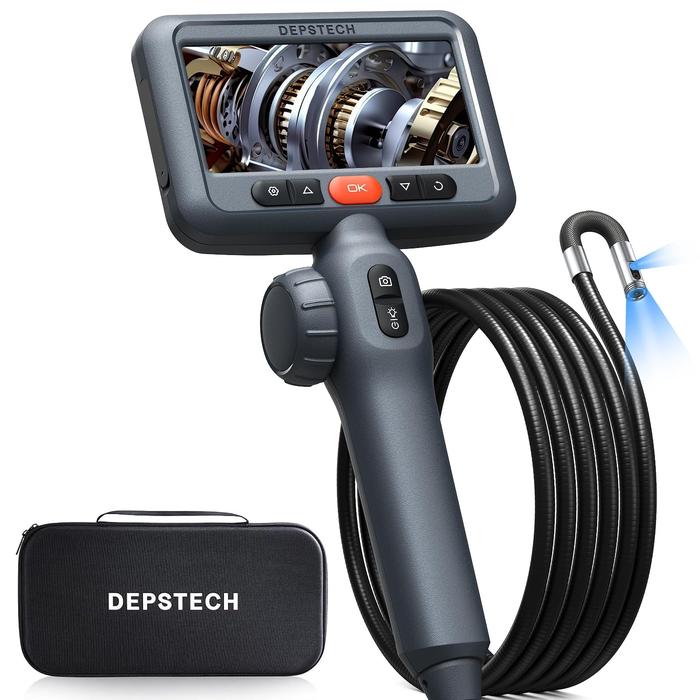
Choose hardware based on the connection method, intended use, and exact app compatibility. A wireless visual ear cleaner and a USB inspection camera may both use small cameras, but they do not necessarily use the same software. Buying a device based only on the word endoscope can lead to a camera that will not connect.
Read the listing and manual before paying. Check the model number, operating system requirements, connection type, power source, and included accessories. If the seller does not state whether EndscopeTool is supported, ask for confirmation rather than relying on a similar product photo.
Source: is1-ssl.mzstatic.com
Connection type
Confirm whether the device uses its own Wi-Fi network, a direct USB connection, or another method.
Phone support
Check the supported Android or iOS versions and any required adapters.
Intended use
A tool designed for pipe inspection is not automatically suitable for use in the ear or on the body.
Replacement parts
Confirm that suitable tips, charging cables, and other required parts are available.
EndscopeTool versus a USB endoscope app
The main difference is the hardware and connection method each app supports. EndscopeTool is described as software for compatible Wi-Fi camera equipment. A USB endoscope app is often designed for cameras that connect through a supported USB or USB OTG interface, which lets a phone act as a host for certain accessories.
The names are not interchangeable. A USB camera may need an adapter, suitable power, and operating system support. A wireless camera may instead require the phone to join the device’s Wi-Fi network. Check the manufacturer’s documentation for the exact model before selecting an app.
Wireless camera
Typically requires the correct Wi-Fi connection and a compatible companion app.
USB camera
May require USB OTG support, an adapter, and a compatible camera app.
Medical equipment
Requires equipment intended and approved for the specific clinical use; a consumer inspection camera is not a substitute.
Common Mistakes to Avoid
Most setup mistakes come from treating the app as if it can work with any camera. Others happen when users change several settings at once or download a replacement app without checking compatibility. A careful, simple setup is usually easier to troubleshoot.
Avoid using the camera in a sensitive area until the live feed works reliably in a safe setting. The purpose of the first test is to confirm the connection, not to begin cleaning or repair work.
Source: appbrain.com
Installing an app with a similar name
Match the app name and developer information with the device instructions.
Switching Wi-Fi too soon
Some camera connections need the phone to stay on the device’s network, even when internet access is unavailable.
Ignoring the battery
A weak battery can cause startup failures or an unstable picture.
Granting every permission
Review each request and allow only what is needed for the features you use.
Assuming every camera is compatible
Confirm the model, connection type, and supported operating system.
Using a camera as a medical diagnosis tool
Seek qualified care when symptoms or an injury may be present.
When should you contact the developer or seller?
Contact the seller or app developer when the device powers on, the correct network is selected, and the recommended connection steps still fail. Include the phone model, operating system version, camera model, app version, and a clear description of the problem. These details can help support staff identify a compatibility issue.
Do not send private medical images or account details unless they are genuinely needed and you understand how they will be handled. A support request should focus on the technical fault and the steps already tried.
For app errors
Use the contact or support details listed in the official store or app privacy policy.
For hardware faults
Contact the seller or manufacturer about warranty coverage, charging problems, or a damaged camera.
Frequently Asked Questions
Q
What is EndscopeTool used for?
EndscopeTool is a companion app that displays images transmitted by compatible wireless camera equipment. It is associated with visual ear-cleaning devices and may support other compatible camera hardware. The functions available depend on the device and app version.
Q
Is EndscopeTool available for iPhone and Android?
Yes. EndscopeTool has listings on both the Apple App Store and Google Play. Check the current listing for your phone’s operating system requirements and confirm that your camera supports the app.
Q
Why does EndscopeTool need Wi-Fi?
Compatible wireless cameras use Wi-Fi to send their images to the phone. Some create their own network for the camera feed, so the connection may work even when the phone reports that the network has no internet access. Follow the device manual for the correct network and connection steps.
Q
Can I use EndscopeTool without a compatible camera?
No. The app is designed to display images sent from compatible equipment. Installing it on a phone without supported camera hardware will not provide the intended live camera view.
Q
Is EndscopeTool safe to download?
Use the official Google Play or Apple App Store listing whenever possible. Check the developer information, permissions, privacy policy, and recent updates. Avoid unknown APK files and unofficial downloads because the name and icon alone cannot verify that a file is genuine.
Q
Why does EndscopeTool show a black screen?
The camera may be off, low on power, disconnected, or incompatible with the app. Confirm the camera is charged, reconnect to its correct Wi-Fi network, and reopen the app. If the screen stays black, check the manual and contact the seller or developer.
Q
Can EndscopeTool save photos and videos?
Photo and video functions depend on the app version and compatible hardware. If capture is supported, check the app’s controls, storage permissions, and gallery location. Do not assume that every device offers recording or saves files directly to the phone’s main photo library.
Q
Can I use an EndscopeTool ear cleaner deep inside my ear?
No. Do not push a camera-equipped cleaning tool deep into the ear canal or toward the eardrum. A live image does not prevent injury. If you have ear pain, discharge, dizziness, sudden hearing loss, or a history of ear problems, seek medical advice before attempting ear cleaning.
✦ Wrapping Up
Conclusion
EndscopeTool is a companion app for viewing images from compatible wireless camera equipment. It can be useful when you need a live view from a supported camera, including certain visual ear-cleaning devices. The correct hardware, phone settings, and wireless connection are key to getting it to work.
Start with the official app store, confirm your device model, and follow the supplied setup instructions. If the screen stays blank, check power and Wi-Fi before reinstalling anything. Review the privacy policy and permissions as well, and treat the camera’s image as a limited view rather than proof that a device is safe for every use.
💡 Key Takeaway
Before using EndscopeTool, verify camera compatibility, charge the device, connect to the correct network, and test the live image in a safe setting. For visual ear cleaning, avoid deep insertion and seek qualified medical advice if symptoms are present.